Translator Module
To
add, edit t_texts and show
progress translate texts. Support
auto translate, auto check spelling and
matching texts.
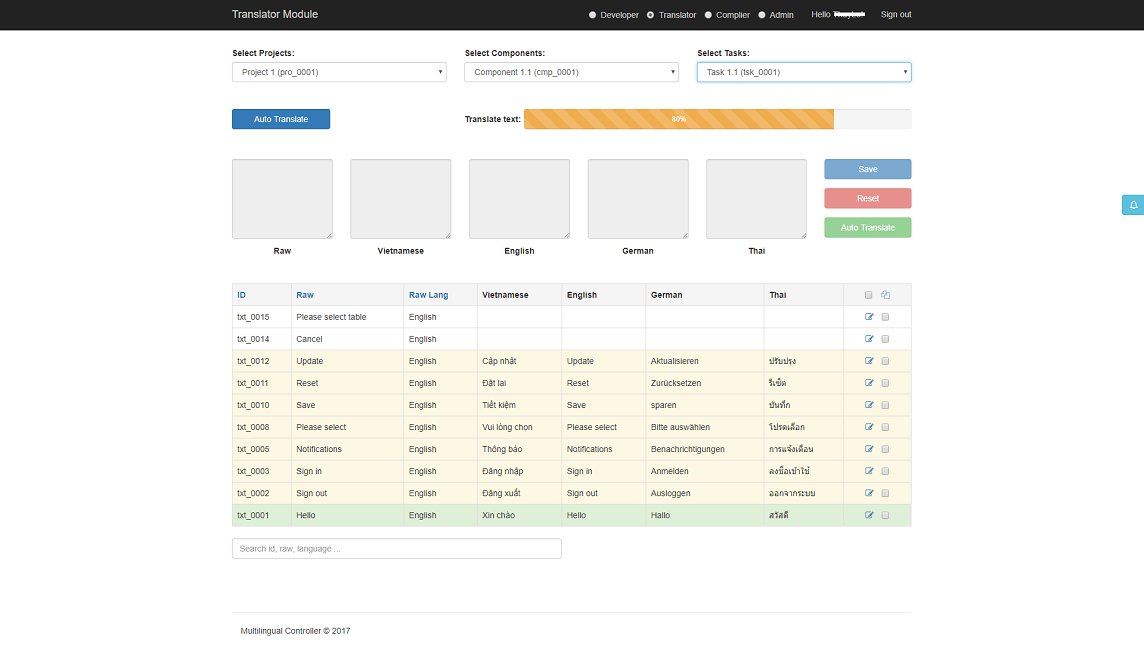
1. UI
Employee has role
admin or
translator or
dual role (developer; translator) can access to this module.
2. Load projects
Same load projects in
Developer Module.
3. Load components
Same load components in
Developer Module.
4. Load tasks
Same load tasks in
Developer Module.
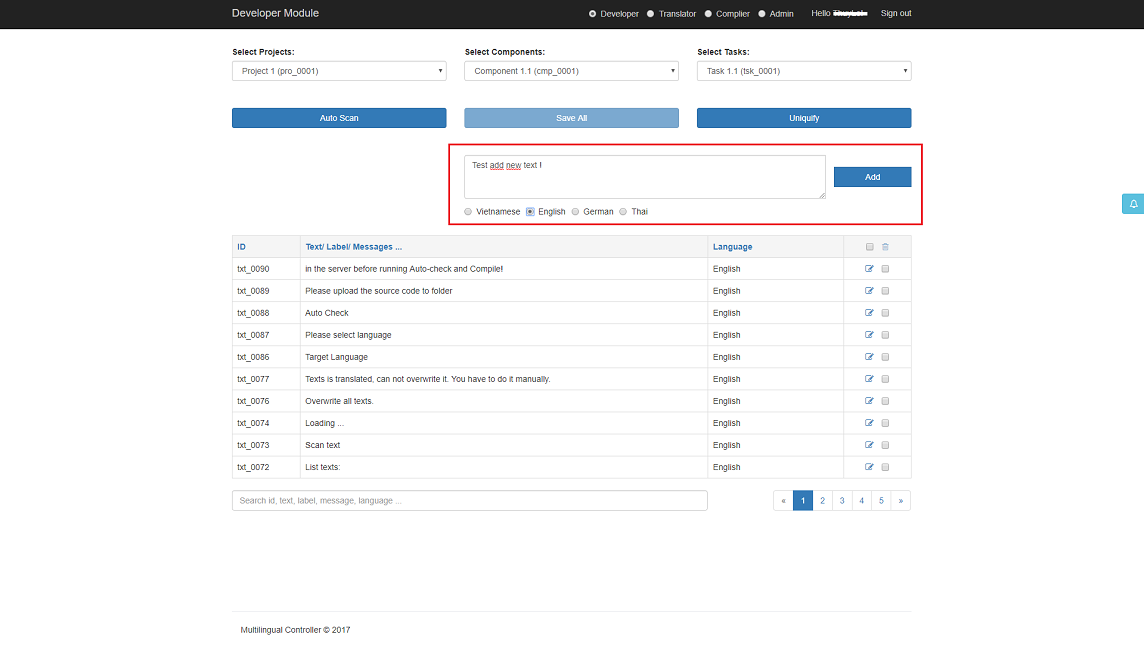
5. Add/ Edit translated texts
Click icon
Edit in the right side of row to edit text.
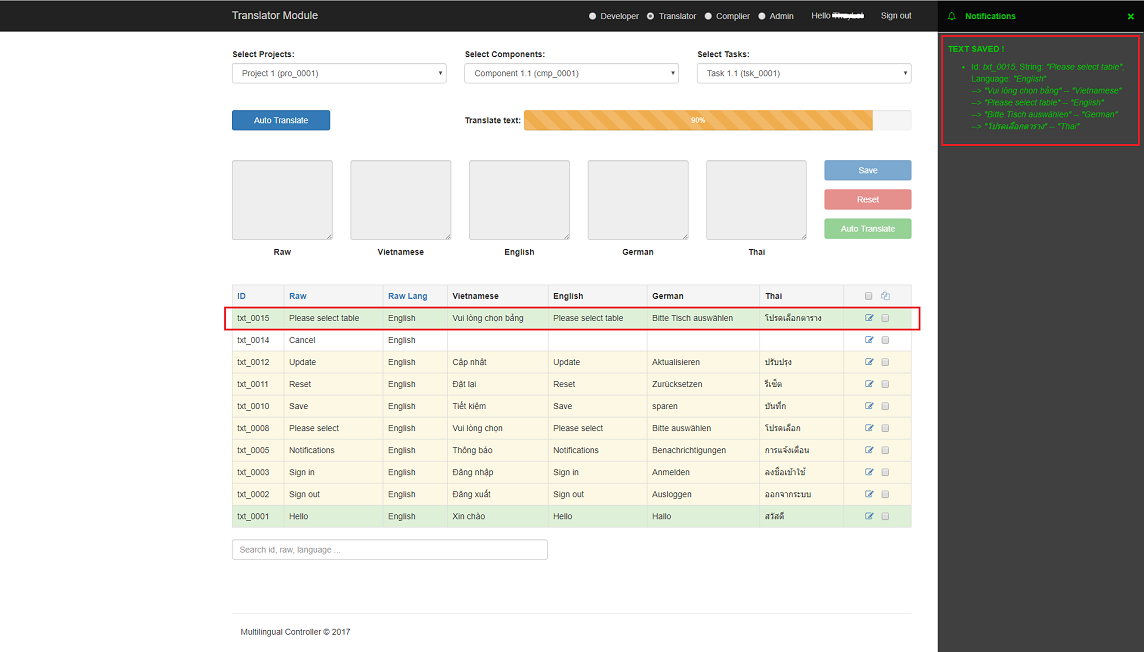
Then click
Save to save edit texts, notification bar will be open to show result edit
texts,
texts in the table and
progress translate texts will be reload. Or click
Cancel to cancel edit texts.
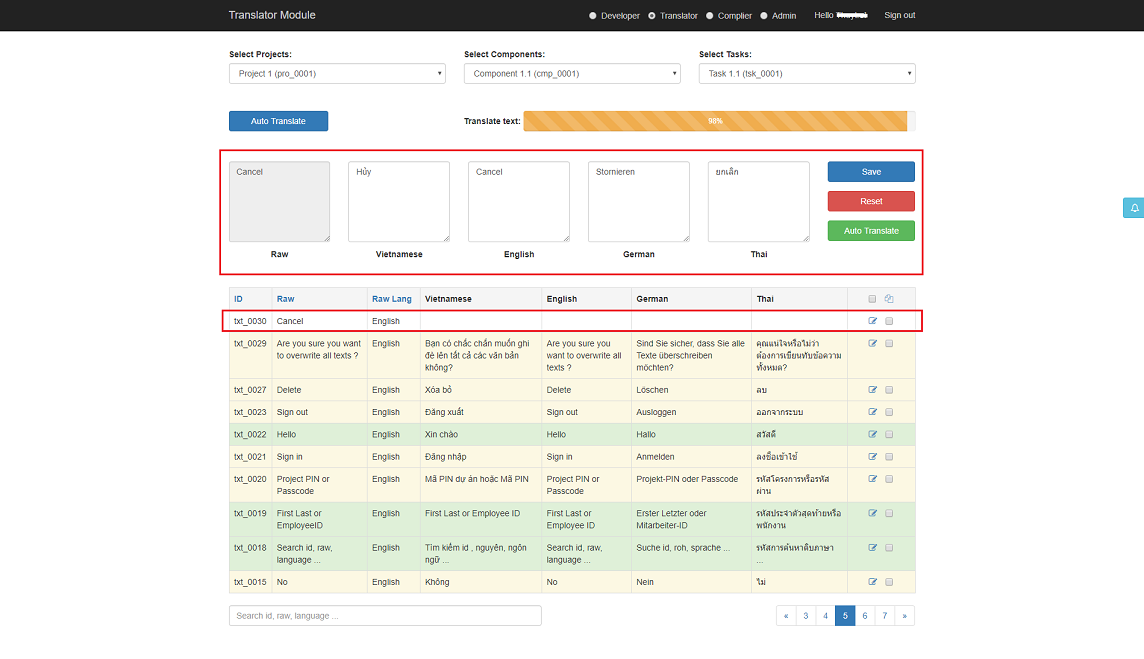
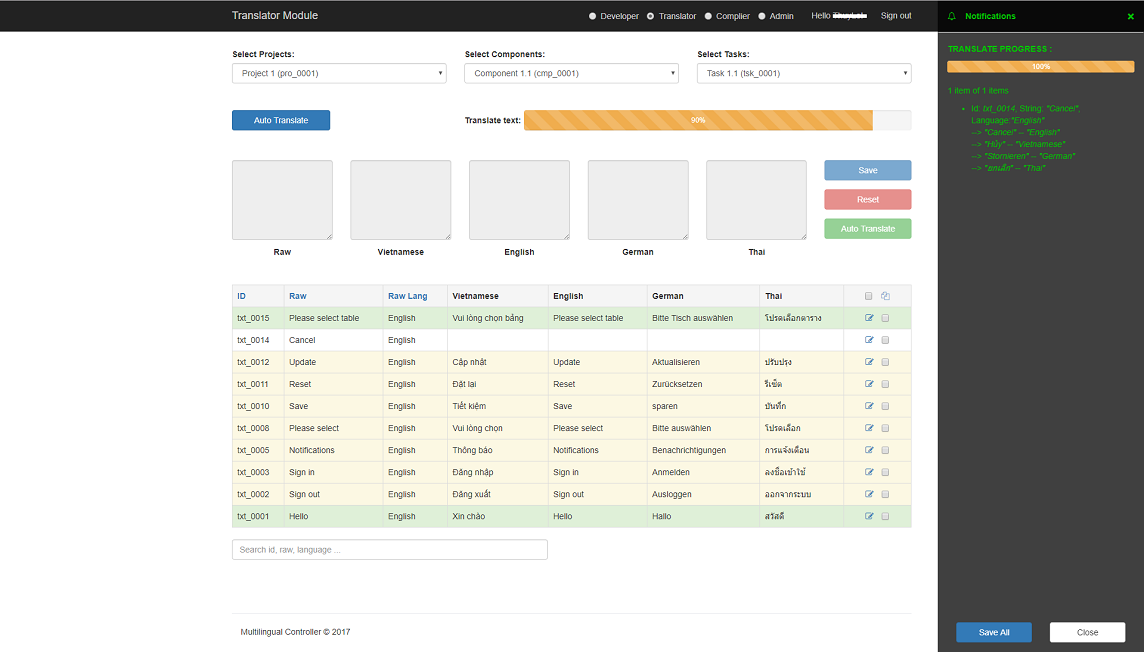
6. Auto translate
To auto
translate texts and
check spelling. Support auto translate each row or auto translate all texts
not
translation.
Translated each row
Translated all
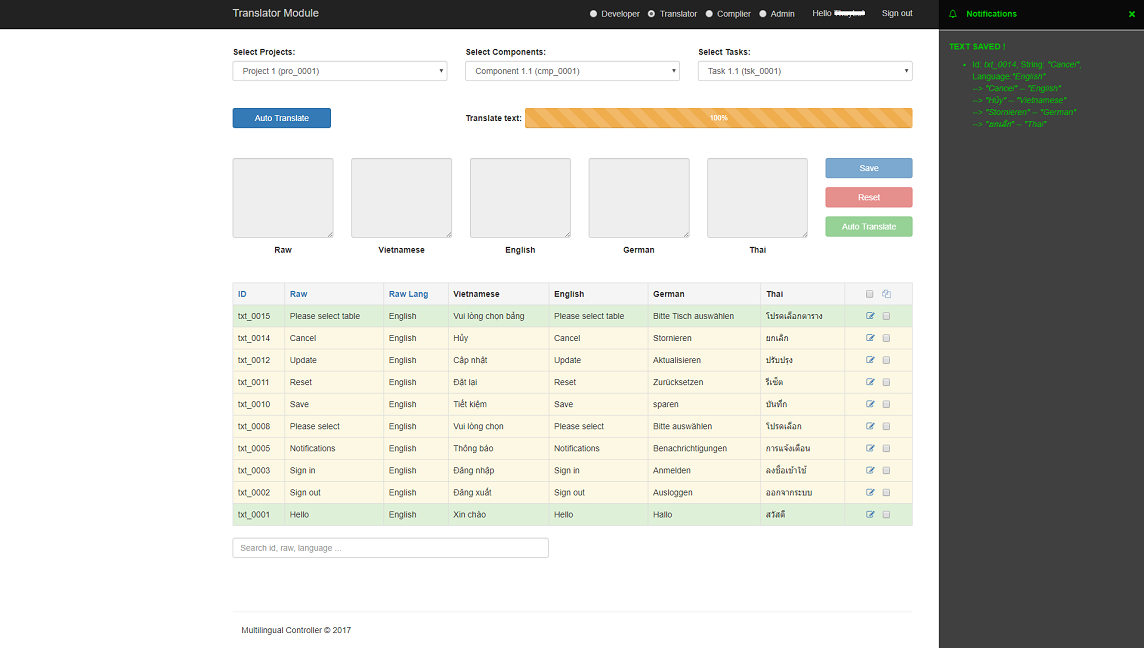
Then click
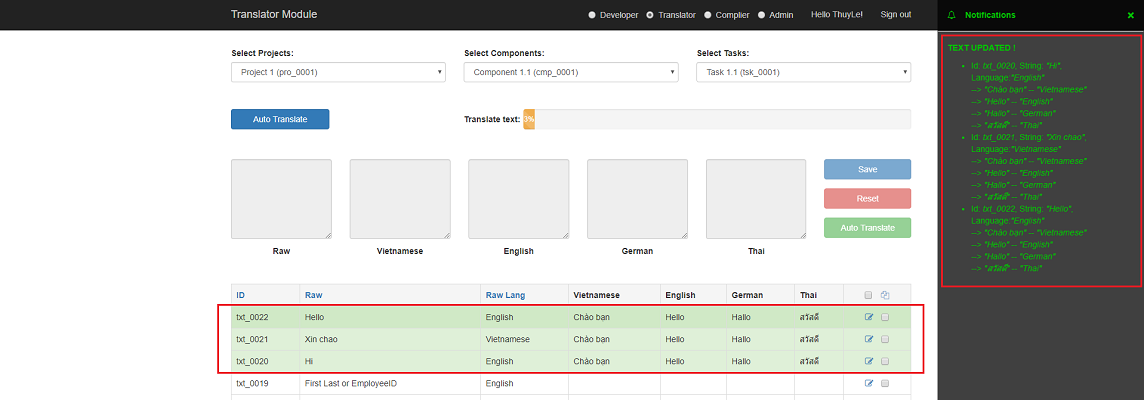
Save to save translated texts, notification bar will be open to show save
texts,
texts in the table and
progress translate texts will be reload. Or click
Cancel to cancel save texts.
7. Matching texts
We already take care the case that if two texts are exactly the same (by
Uniquify), but if two texts are different by a few characters because of
typos or
a few words and the translator decides they are the same thing, what do we do to
support?
Matching texts will do it.
Choose texts
matching by selected/checked checkbox at the right of row. If more than 1
row are
selected/checked,
Matching icon in the header row is enable.
Then click
Matching icon, a confirmation will be show to confirm before running the
function.
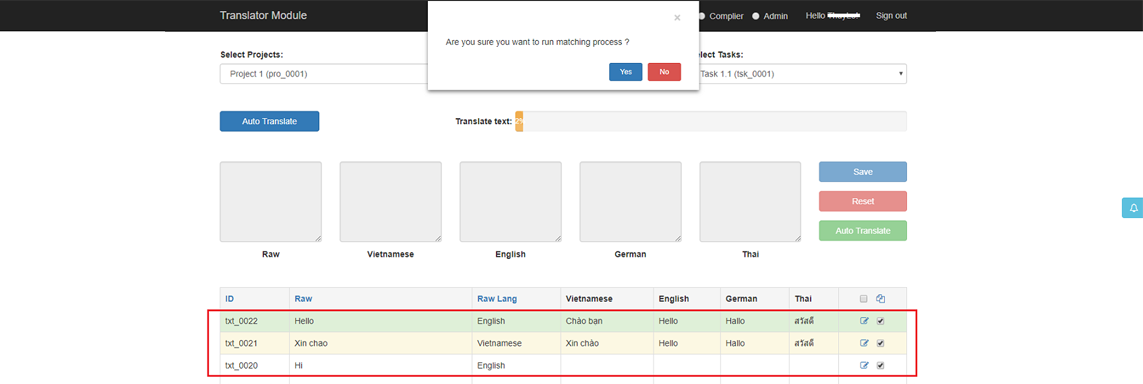
Now, this process will be:
-
Check selected row in
light greenstatus:- If there is
norow, go to check selected row inlight orangestatus. - If there is only
1row, copy overwrite its text from all languages (Vietnamese/English/…) except the raw to other selected row. - Otherwise, there are
severalrows. In each language, choose the one that are most frequently. If the frequency is equally, choose the first one in the order of ID. Then copy overwrite its text from all languages except the raw to other selected row.
- If there is
-
Check selected row in
light orangestatus:- If there is
norow, in each language, choose the one that are most frequently. If the frequency is equally, choose the first one in the order of ID. Then copy overwrite its text from all languages except the raw to other selected row. - If there is only
1row, copy overwrite its text from all languages except the raw to other selected row. - Otherwise, there are
severalrows. In each language, choose the one that are most frequently. If the frequency is equally, choose the first one in the order of ID. Then copy overwrite its text from all languages except the raw to other selected row.
- If there is