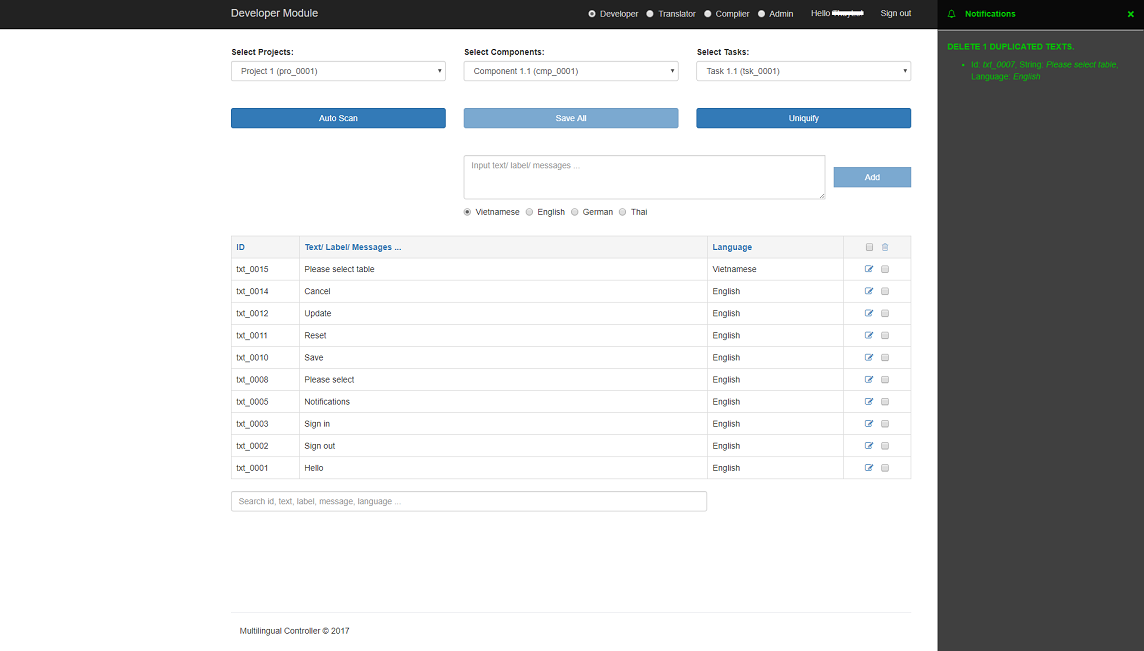
Developer Module
To
add, edit, delete texts. Support
auto scan, uniquify texts.
1. UI
Employee has role
admin or
developer or
dual role (developer; translator) can access to this module.
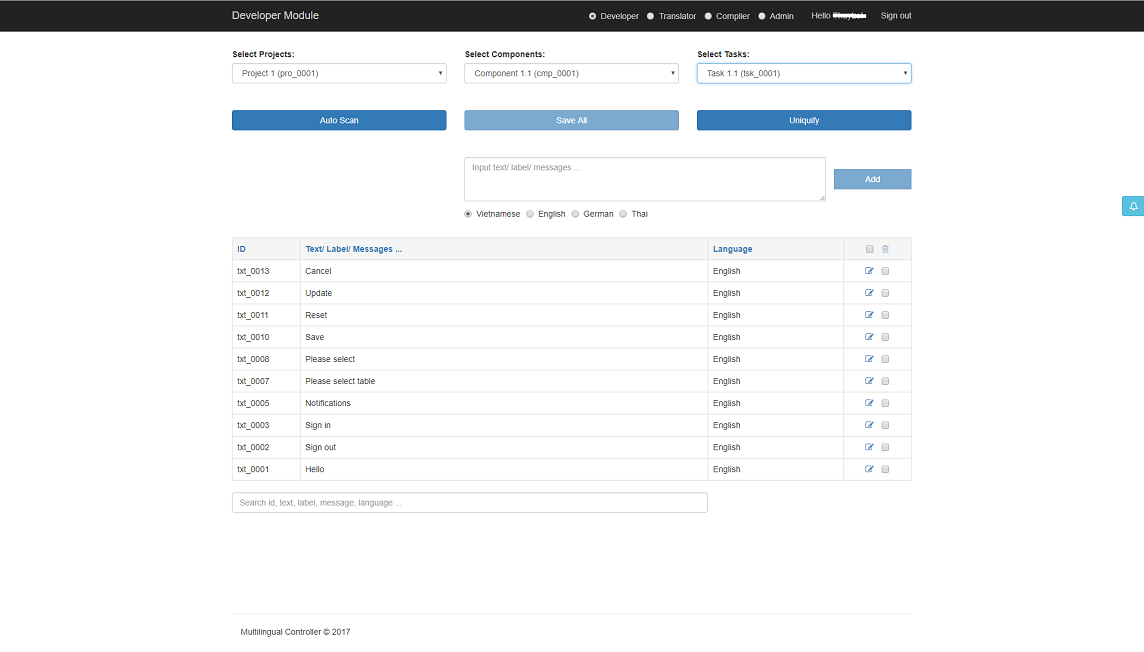
2. Load projects
Choose
projects in the select projects box in the header.
If employee sign in with
Project PIN, only this project will be load.
If employee sign in with
Admin role, all projects will be load. Otherwise, only projects of this
employee will
be load.
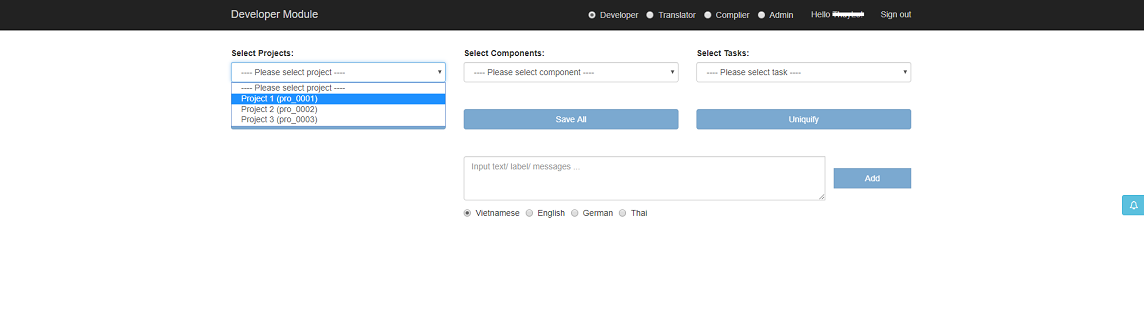
3. Load components
Can choose
components after choose
projects.
If employee sign in with
Admin role, all components of selected project will be load. Otherwise,
only components
of selected project of this employee will be load.
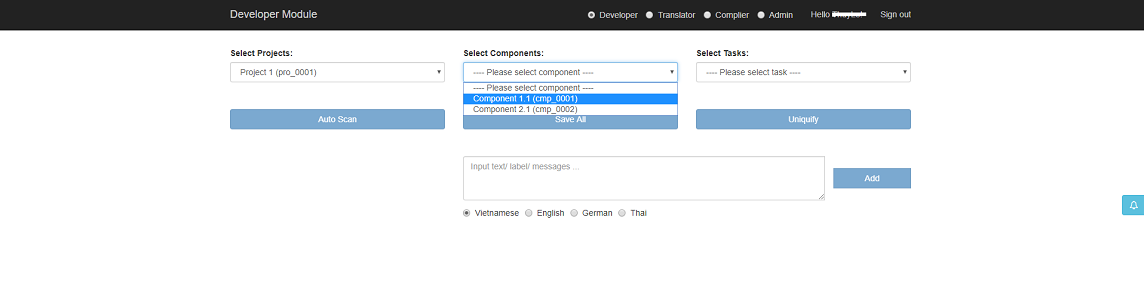
4. Load tasks
Can choose
tasks after choose
components.
If employee sign in with
Admin role, all tasks of selected component will be load. Otherwise, only
tasks of
selected component of this employee will be load.
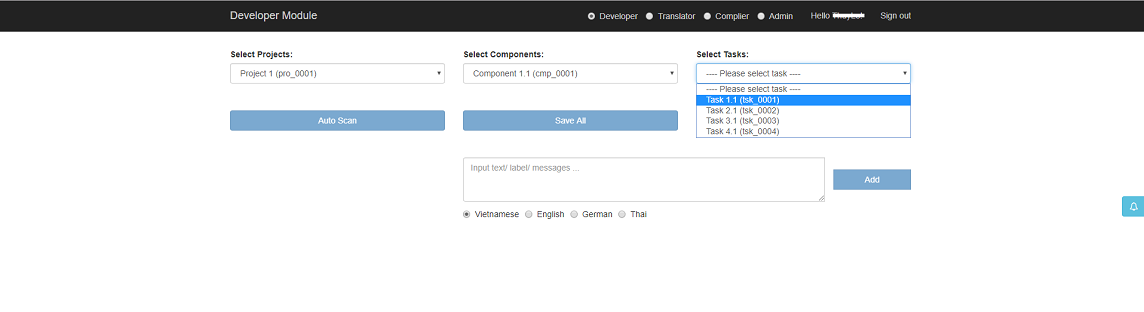
5. Add new texts
When selected
tasks,
texts will be load.
To add new
texts, input
texts string in the text area and select
texts language.
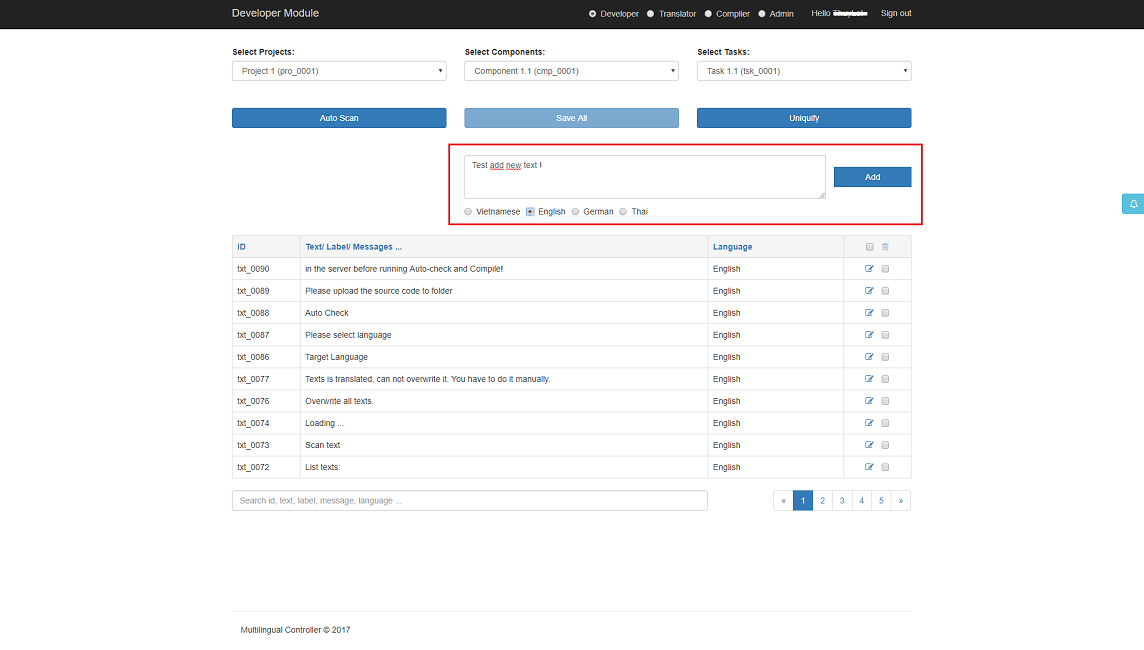
Then click
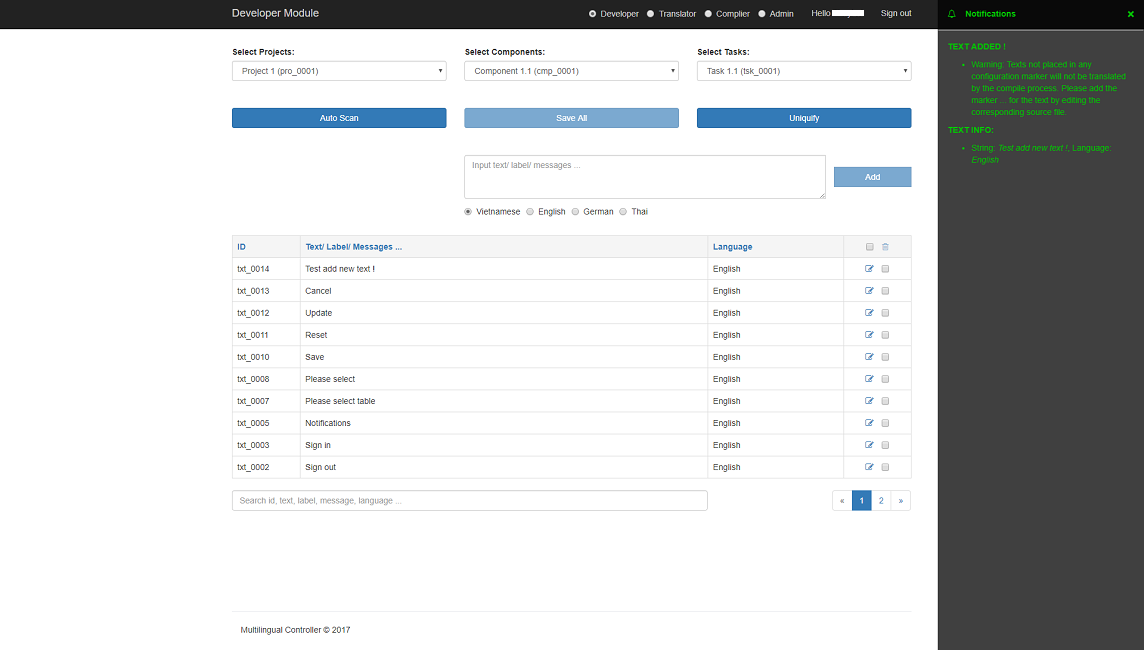
Add, notification bar will be open to show result add texts.
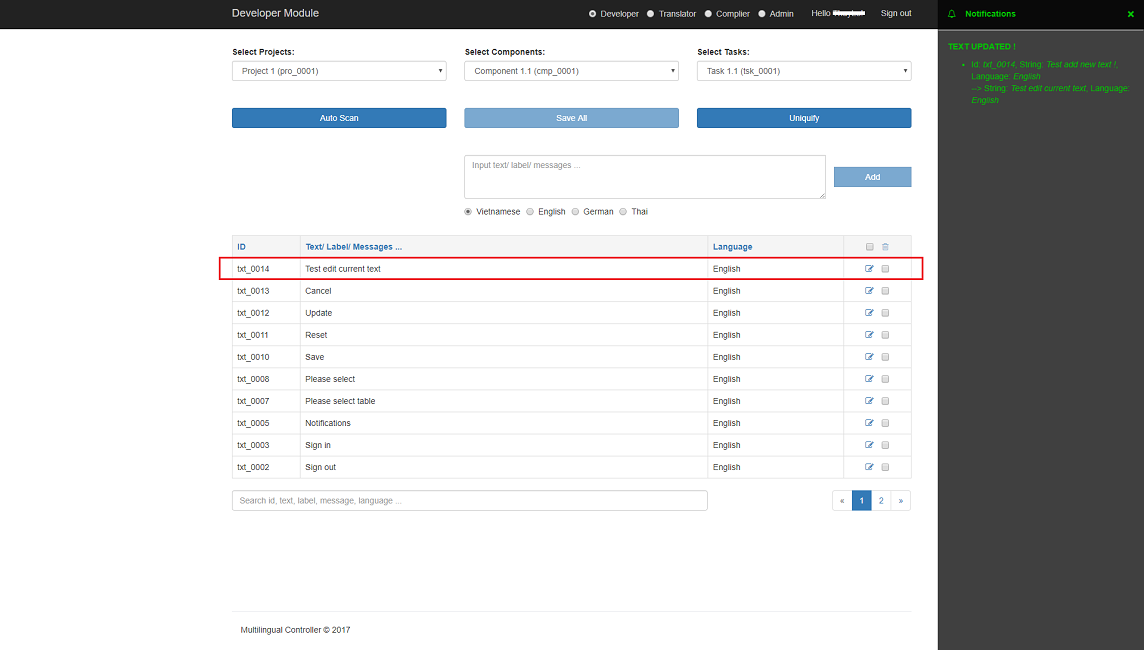
6 .Edit texts
Click icon
Edit in the right side of row to edit text.
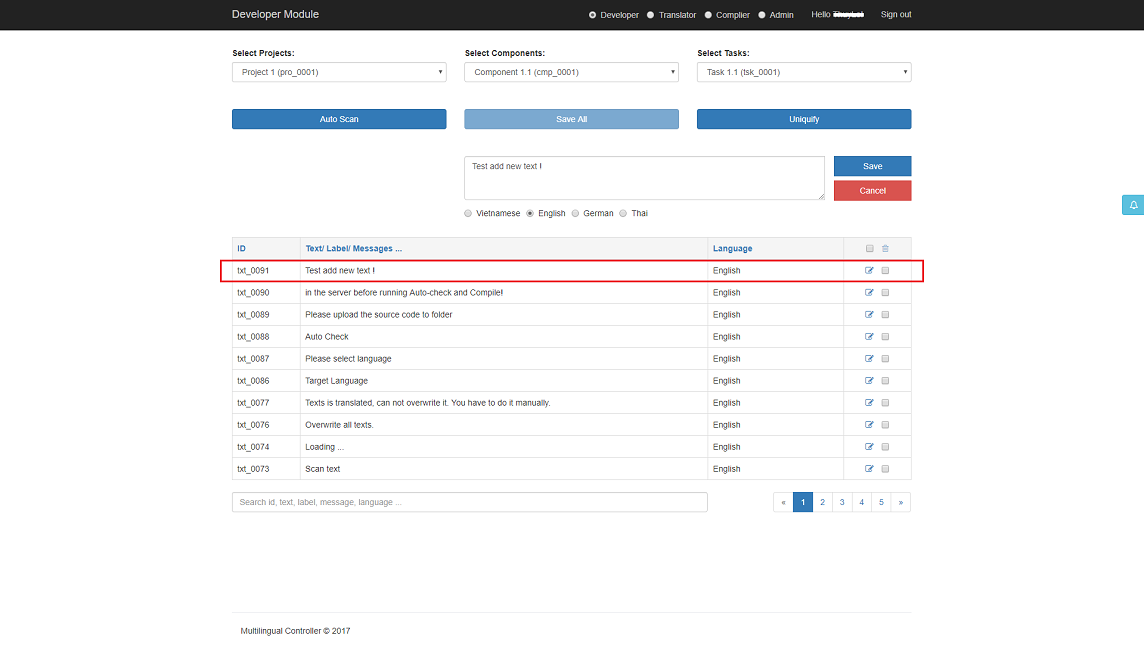
Then click
Save to save edit texts, notification bar will be open to show result edit
texts.
Or click
Cancel to cancel edit texts.
7 .Delete texts
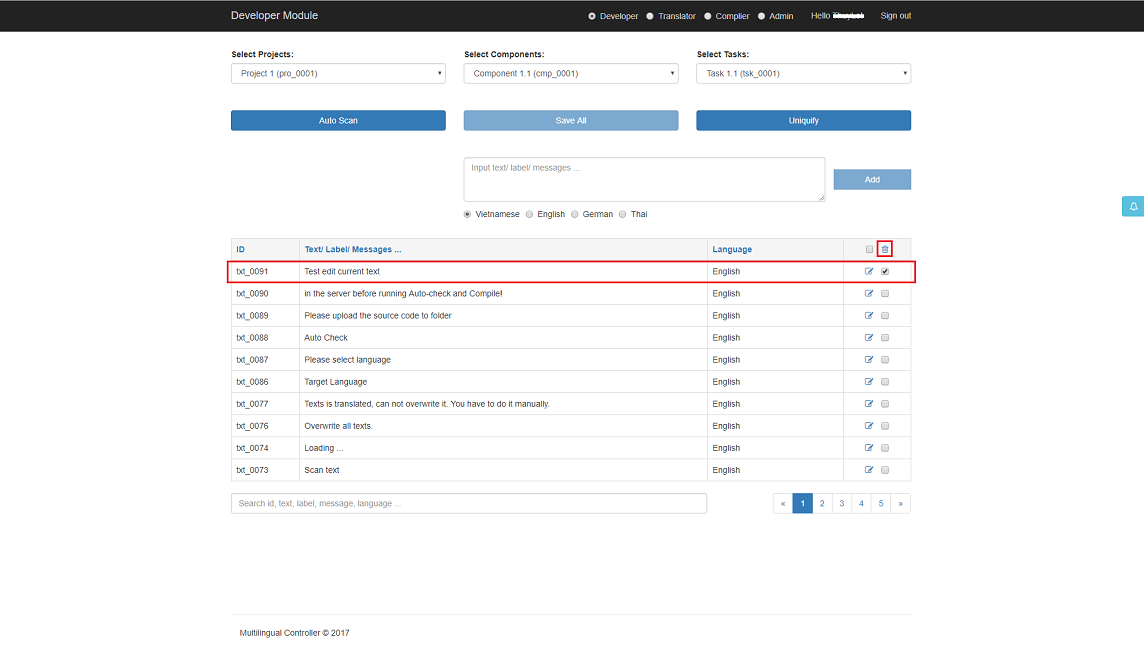
To delete text, choose it by click checkbox at the right row, then click
Delete icon in the header row to delete all selected texts. You can delete
all texts
by click checkbox in the header row to select all.
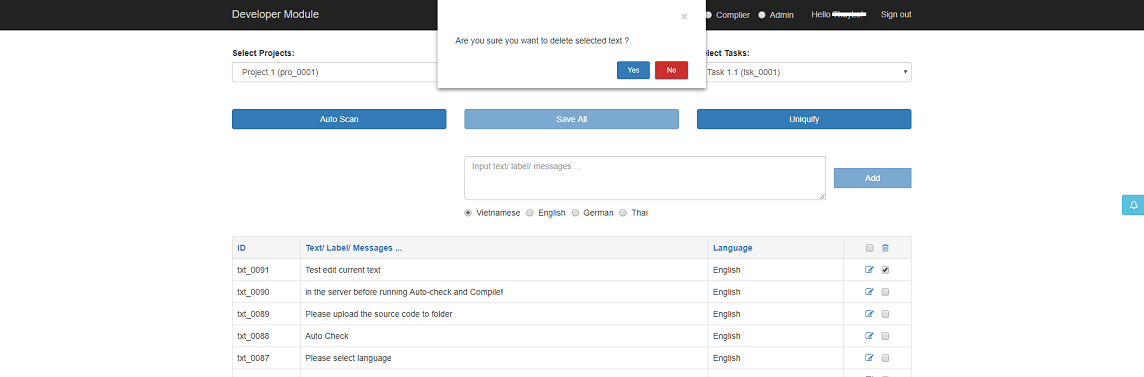
Then click
Delete, a layer to confirm delete will be show.
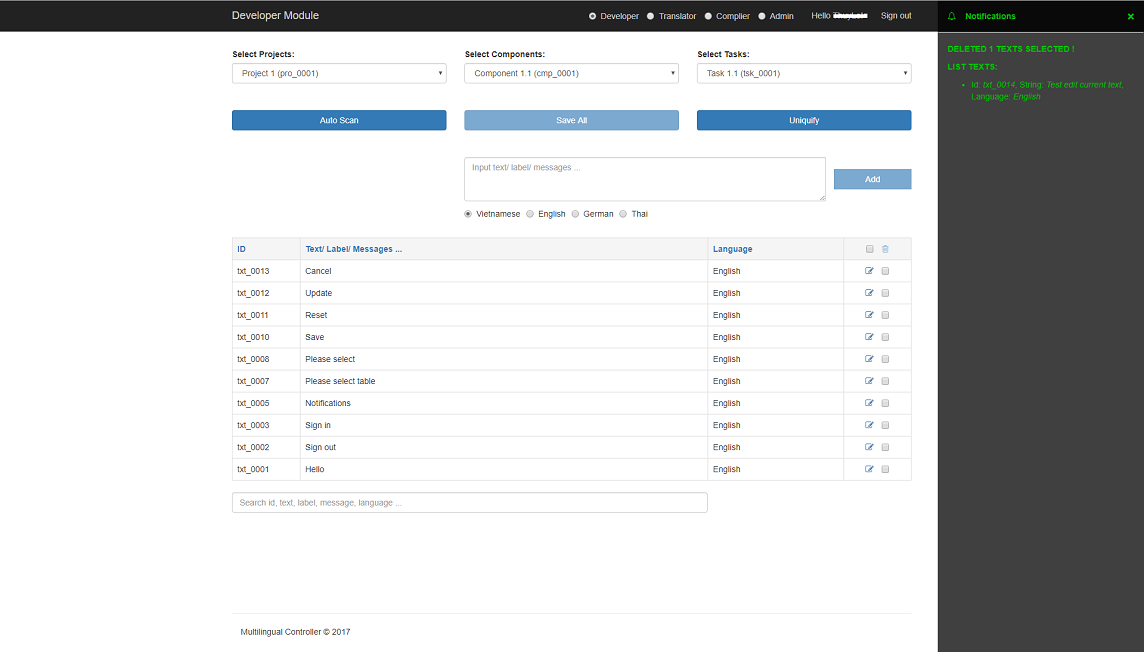
Then click
Yes in confirm delete, notification bar will be open to show result delete
texts.
8 .Auto scan
Auto scan will scan all text in file or folder input.
User can edit JSON configuration file by upload custom JSON file with name has
format
employeeId.autoscan.conf.json. Otherwise, process will be use default JSON
file with
name
autoscan.conf.json.
Example JSON file:
{
    "extensions": {
        "html": [
            ["<strong>", "</strong>"],
            ["<h1>", "</h1>"],
            ["<HTML-TAG-NAME>", "</HTML-TAG-NAME>"]
        ],
        "json": [
            ["[", "]"],
            ["{", "}"]
        ],
        "OTHER-FILE-EXTENSIONS" : []
    },
    "public": [
        ["<trans>", "</trans>"],
        ["<PUBLIC-TAG-ALL-FILES-USE>", "</PUBLIC-TAG-ALL-FILE-USE>"]
    ],
    "custom": {
        "html": [
            ["<YOUR-CUSTOM-HTML-TAG-NAME>", "</YOUR-CUSTOM-HTML-TAG-NAME>"]
        ]
    }
}
Click
Auto scan then choose
Scan File or
Scan Folder
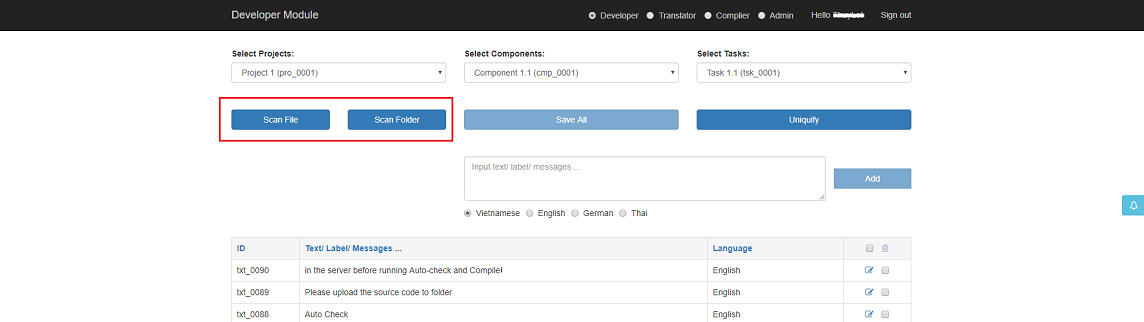
Scan File
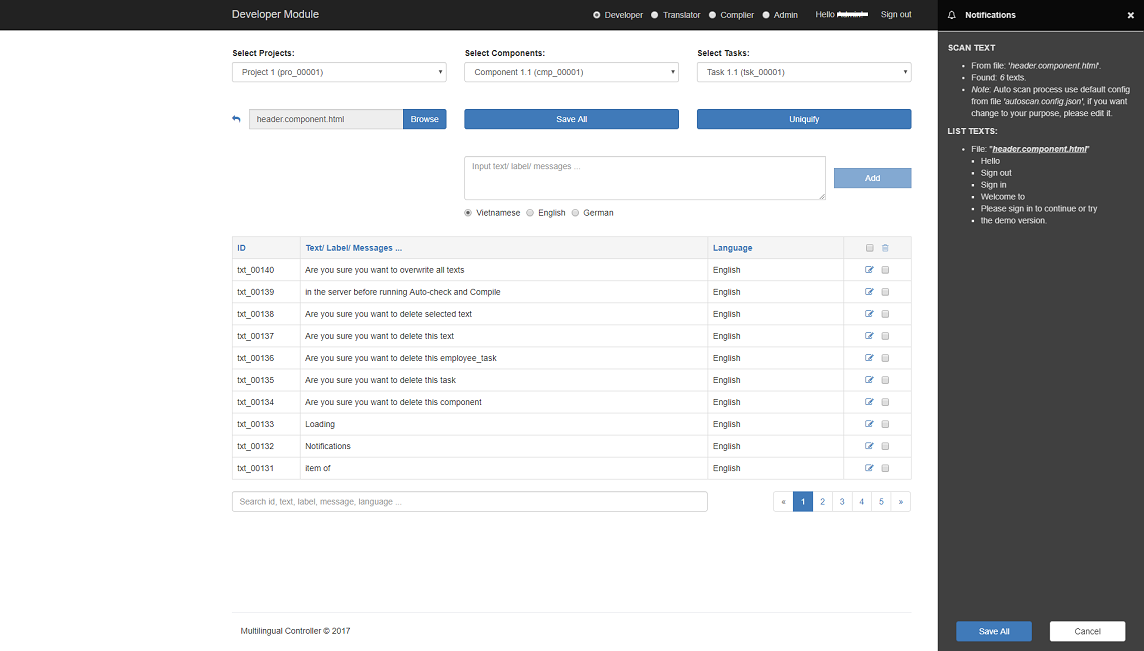
Scan Folder, show text file by file.
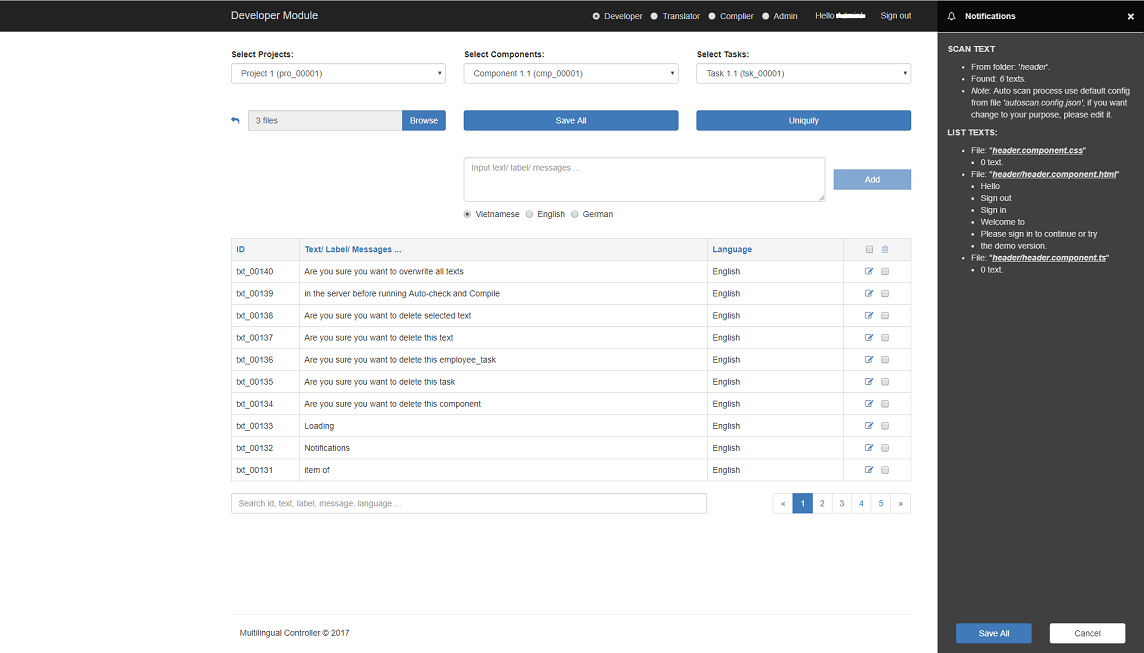
Then click
Save All to save all texts, or click
Cancel to cancel auto scan texts. If click
Save All a layer to confirm
overwrite all texts will be show.
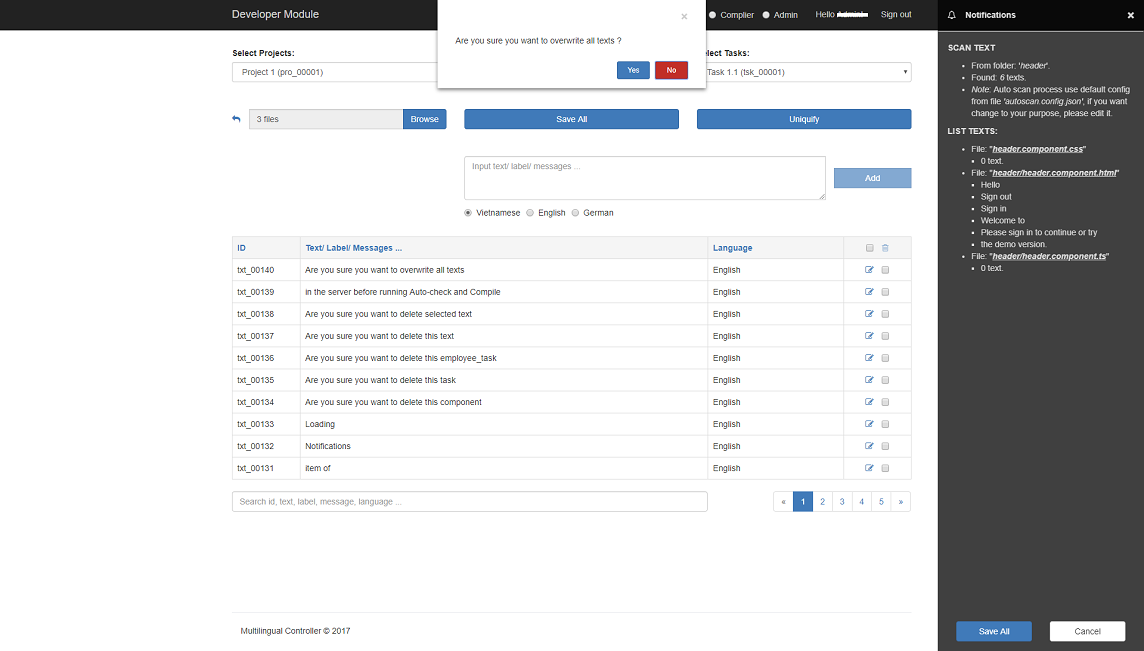
Now, if all texts
no translation, auto scan will be
overwrite all texts.
Otherwise, a messages
Texts is translated, can not overwrite it. You have to do it manually. will
be send
notification bar.
9 .Uniquify
To check
duplicate texts.
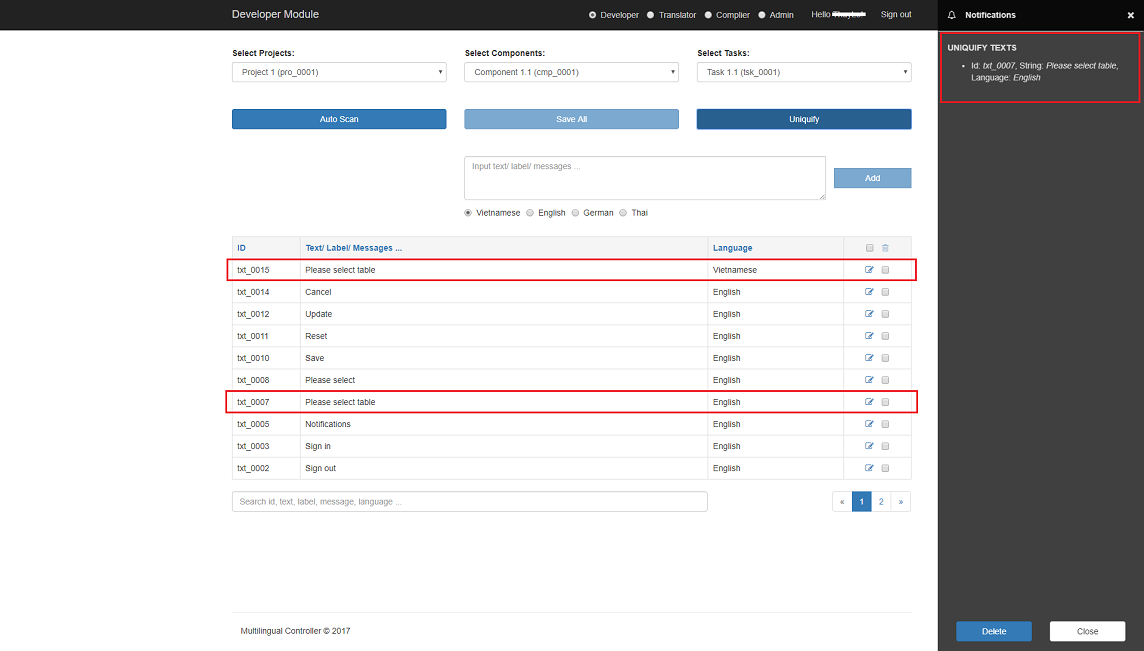
Then click
Delete to delete duplicate texts, notification bar will be open to show
result delete
texts. Or click
Cancel to cancel uniquify texts.